
How to Fix Error: The IP address “” you have entered for this network adapter is already assigned to another adapter Name of adapter
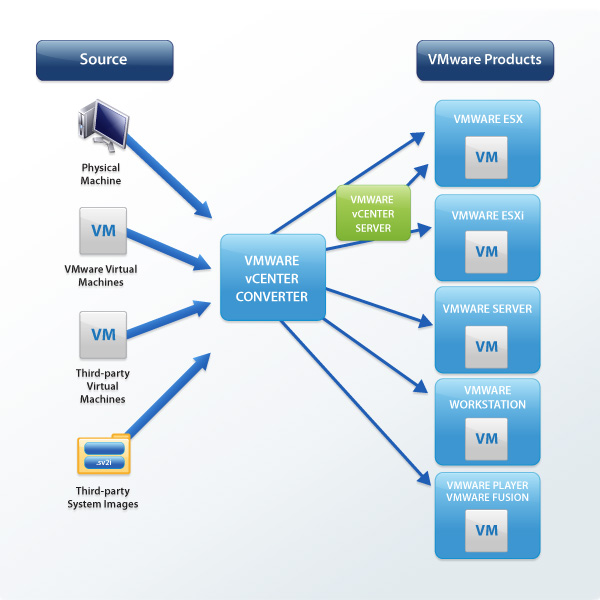
Image from http://wmware.com
I have just Virtualized a Server and I when I tried to assign the same IP Address it had when it was a Physical machine I get an Error:
The IP address XXX.XXX.XXX.XXX you have entered for this network adapter is already assigned to another adapter Name of adapter. Name of adapter is hidden from the network and Dial-up Connections folder because it is not physically in the computer or is a legacy adapter that is not working. If the same address is assigned to both adapters and they become active, only one of them will use this address. This may result in incorrect system configuration. Do you want to enter a different IP address for this adapter in the list of IP addresses in the advanced dialog box?
Doing some google search I get results:
Vmware.com –
Networking Error, IP Address Already Assigned to Another Adapter
http://kb.vmware.com/selfservice/microsites/search.do?language=en_US&cmd=displayKC&externalId=1179
Microsoft.com – Error message when you try to set an IP address on a network adapter
http://support.microsoft.com/?kbid=269155
The problem that I had is that when I go to View and click Show Hidden Devices I can see the Intel(R) PRO/1000 MT Network Connection but when I try to uninstall it I get Error Message:
Failed to uninstall the device. The device may be required to boot up the computer.
Well I can’t Uninstall network adapter and I can’t assign the IP Address to the VMware Accelerated AMD PCNet Adapter. Even when I disable the Driver from the Physical NIC (Intel® PRO/1000) I still can’t assign IP Address the the VMware Network Adapter.
This is what I had to do in order to remove the Physical Network Card from the Virtual Machine and I was able to Assign the IP address with out any problems.
1. Run > regedit
2. File > Export – Do a backup of your Registrty Settings.Will have to delete Registriy settings of the Intel Network Adpater
3. Ctrl+F or Edit > Find – Search for you Network Adpater Name in my case I did a search for “1000 MT” it is unique I would not do a search for just Intel because there is of other Interl componets.
4. If you find the Network Adpter Name with other adapters delete just the key with “Your adpter’s name in the Description”
Sample:
HKEY_LOCAL_MACHINESOFTWAREMicrosoftWindows NTCurrentVersionNetworkCards9]
“ServiceName”=”{256CX651-7274-XXX-A797-XXXXXXAAXXXX}”
“Description”=”Intel(R) PRO/1000 MT Network Connection”
I deleted just the key “9”
5. Then Press F3 to contiue the search.
In this case
[HKEY_LOCAL_MACHINESYSTEMControlSet001ControlClass{4D36E972-0000-0000-BFC1-00002bE10000}007]
“ChangeProperties”=dword:00000001
“LogLinkStateEvent”=”51”
“DmaFairness”=”0”
“FirstTime”=”1”
“PciScanMethod”=”3”
“TxIntDelay”=”28”
“MulticastFilterType”=”0”
“MWIEnable”=”0”
“CustomMessages”=”1”
“VlanFiltering”=”1”
“QtagSwControlled”=”0”
“WaitAutoNegComplete”=”2”
“ReduceSpeedOnPowerDown”=”1”
“AutoPowerSaveModeEnabled”=”0”
“SavePowerNowEnabled”=”1”
“AutoNegAdvertised”=”47”
“TaggingMode”=”0”
“CoInstallFlag”=dword:98000001
“ITR”=”65535”
“AdaptiveIFS”=”0”
“Characteristics”=dword:00000084
“BusType”=”5”
“ComponentId”=”pci\ven_8086&dev_1076”
“ChecksumRxIp”=”1”
“ChecksumRxTcp”=”1”
“ChecksumTxIp”=”1”
“ChecksumTxTcp”=”1”
“EnablePME”=”2”
“FlowControl”=”3”
“MasterSlave”=”0”
“MaxFrameSize”=”1514”
“NumRxDescriptors”=”256”
“NumTxDescriptors”=”256”
“SPDEnabled”=”1”
“SpeedDuplex”=”0”
“TcpSegmentation”=”1”
“WakeOnLink”=”0”
“WakeOn”=”246”
“InfPath”=”oem0.inf”
“InfSection”=”E1076.ndi.NTx86.5.1”
“ProviderName”=”Intel”
“DriverDateData”=hex:00,00,00,00,00,d0,c4,01
“DriverDate”=”11-22-2004”
“DriverVersion”=”8.4.21.0”
“MatchingDeviceId”=”pci\ven_8086&dev_1076”
“DriverDesc”=”Intel(R) PRO/1000 MT Network Connection”
“NetCfgInstanceId”=”{256CX651-7274-XXX-A797-XXXXXXAAXXXX}”
I will delete now only the key, but the sub key. It might give you an error so inorder for you to delete it.
Right Click on the Sub-Key in my case “0007” > Permissions.
Under Group or user names: Select Everyone
Uder Permissions for Everone mark Full Control Ceck Box > Hit Ok
Now you will delete the regestry Sub-key with out any problems.
6. Hit F3 Again and process the same steps from Step 4 to Delete All the Keys and Sub-Keys that are assisiated with your network interface configurations.
7. Once you have your network adpater registry settings reboot the system.
8. Once the system has been rebooted Check Device Manager if the network adapter that you were deleting is there. (Make sure to go toView and click Show Hidden Devices) If the interface that delete from registries is not in Device Manger.
9. Go to Network Connections and Assign the IP Address to the VMware Adapter. You should not get any errors and your system should be on the network.
Good Luck people.
Virtualization Rocks!


For me, the best operating system is Linux because it rarely hangs.
@Daniel
I agree with you, I like the stability that Linux has, the only down of Linux is lack of applications. New Ubuntu 10.4 looks great I run it couple times on my tablet works pretty good.
with regards to PC operating system, i love Windows XP and Linux”:”
Linux is still the best when it comes to stability and Windows for ergonomics,”
Thanks, worked for me.